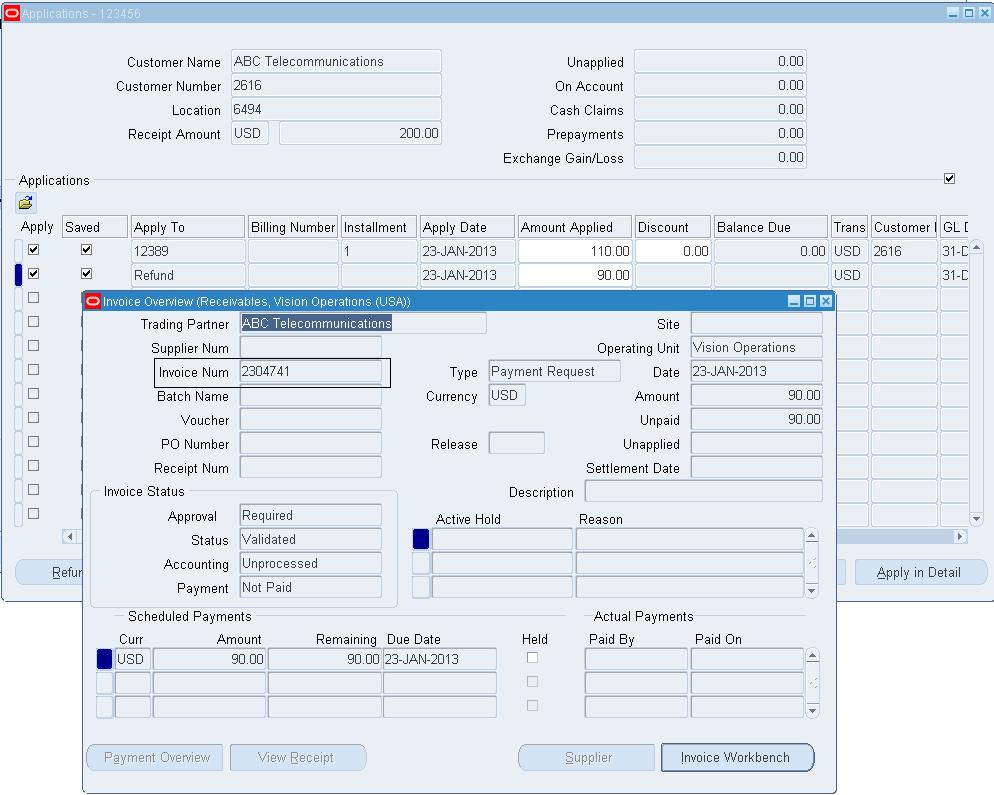
- Transaction / Invoices
- Receipts
Let’s start with Transaction / Invoices.
Tables involved for Journal Entry to Invoice drilldown are
- GL_JE_HEADERS
- GL_IMPORT_REFERENCES
- XLA_AE_LINES
- XLA_AE_HEADERS
- XLA_TRANSACTION_ENTITIES
- RA_CUSTOMER_TRX_ALL
Now, when we are given a
Journal entry with JE_SOURCE as ‘Receivables’ and JE_CATEGORY as ‘Sales
Invoices’, we got to track its JE_HEADER_ID. Here is the step by step
process.
Step 1: For
instance, we are going to track the invoice against the maximum
JE_HEADER_ID with Receivables source and Purchase Invoices Category.
Here is the query for it;
SELECT MAX(JE_HEADER_ID )
INTO V_JE_HEADER_ID
FROM GL_JE_HEADERS
WHERE JE_SOURCE = ‘Receivables’
AND JE_CATEGORY= ‘Sales Invoices’;
Step 2: Now we
are going to check the corresponding GL_SL_LINK_ID against this
JE_HEADER_ID. We can get these link ids through the query,
SELECT GL_SL_LINK_ID
FROM GL_IMPORT_REFERENCES
WHERE JE_HEADER_ID = V_JE_HEADER_ID;
Step 3: And to
get to the relevant lines in sub-ledger modules we need to find lines
against the identified GL_SL_LINK_IDs from XLA_AE_LINES table. Here is
the query to get to the sub-ledger lines
SELECT DISTINCT AE_HEADER_ID
INTO V_AE_HEADER_ID
FROM XLA_AE_LINES
WHERE GL_SL_LINK_ID IN (SELECT GL_SL_LINK_ID
FROM GL_IMPORT_REFERENCES
WHERE JE_HEADER_ID = V_JE_HEADER_ID
);
Step 4: Now we will find ENTITY_ID against the identified header_id. Here is the query,
SELECT ENTITY_ID
INTO V_ENTITY_ID
FROM XLA_AE_HEADERS
WHERE AE_HEADER_ID = V_AE_HEADER_ID;
Step 5: Now, we will get the SOURCE_ID_INT_1 against identified XLA_TRANSACTION to get to the Receivables transaction.
SELECT SOURCE_ID_INT_1
INTO V_SOURCE_ID
FROM XLA_TRANSACTION_ENTITIES
WHERE ENTITY_ID = V_ENTITY_ID;
Step 6: Now is the last step, we will use this source id as invoice id to get to the invoice in Receivables.
SELECT *
FROM RA_CUSTOMER_TRX_ALL
WHERE CUSTOMER_TRX_ID = V_SOURCE_ID;
So, here is the
drilldown from General Ledger to Receivables Invoices. We got to change
in step 1 for JE_CATEGORY as ‘Receipts’ and the query becomes
SELECT MAX(JE_HEADER_ID )
INTO V_JE_HEADER_ID
FROM GL_JE_HEADERS
WHERE JE_SOURCE = ‘Receivables’
AND JE_CATEGORY= ‘Receipts’;
And in step 6, we got to find check details against the identified SOURCE_ID, which makes the SQL as
SELECT *
FROM AR_CASH_RECEIPTS_ALL
WHERE CASH_RECEIPT_ID = V_SOURCE_ID;
/* Formatted on 5/12/2017 3:56:59 PM (QP5 v5.114.809.3010) */
SELECT DISTINCT GJH.JE_HEADER_ID,
GJH.PERIOD_NAME,
XE.EVENT_ID,
GJH.NAME HEADER_NAME,
GJH.DESCRIPTION JE_HEADER_DESCRIPTION,
GJH.ACTUAL_FLAG,
GJL.DESCRIPTION JE_LINE_DESCRIPTION,
RCT.TRX_DATE,
xal.ENTERED_CR ENT_CR,
XAL.ENTERED_DR ENT_DR,
XAL.ACCOUNTED_CR ACC_CR,
XAL.ACCOUNTED_DR ACC_DR,
GJL.JE_LINE_NUM,
GJH.JE_CATEGORY,
GJH.JE_SOURCE,
PARTY.PARTY_NAME PARTY,
RCT.TRX_NUMBER TRX_NUM,
MTL.SEGMENT1 ITEM,
CTL.DESCRIPTION INV_LINE_DESC
FROM GL.GL_JE_HEADERS GJH,
GL.GL_JE_LINES GJL,
GL.GL_CODE_COMBINATIONS GCC,
GL.GL_PERIODS GLP,
GL.GL_IMPORT_REFERENCES IMP,
XLA.XLA_AE_LINES XAL,
XLA.XLA_AE_HEADERS XAH,
XLA.XLA_EVENTS XE,
XLA.XLA_TRANSACTION_ENTITIES XTE,
RA_CUSTOMER_TRX_ALL RCT,
HZ_PARTIES PARTY,
AR.HZ_CUST_ACCOUNTS CA,
GL_CODE_COMBINATIONS_KFV CC,
AR.RA_CUSTOMER_TRX_LINES_ALL CTL,
AR.RA_CUST_TRX_LINE_GL_DIST_ALL CTLD,
xla.xla_distribution_links xdl,
apps.mtl_system_items_b mtl
WHERE 1 = 1
AND GJH.JE_HEADER_ID = GJL.JE_HEADER_ID
--AND GJL.STATUS || '' = 'P'
AND GCC.CODE_COMBINATION_ID = CTLD.CODE_COMBINATION_ID
AND GJH.PERIOD_NAME = GLP.PERIOD_NAME
AND GJH.PERIOD_NAME = 'JUL-15'
AND RCT.CUSTOMER_TRX_ID = CTLD.CUSTOMER_TRX_ID
AND CTLD.CUSTOMER_TRX_LINE_ID = CTL.CUSTOMER_TRX_LINE_ID
AND GJH.JE_SOURCE = 'Receivables'
AND GJL.JE_HEADER_ID = IMP.JE_HEADER_ID
AND GJL.JE_LINE_NUM = IMP.JE_LINE_NUM
AND IMP.GL_SL_LINK_ID = XAL.GL_SL_LINK_ID
AND IMP.GL_SL_LINK_TABLE = XAL.GL_SL_LINK_TABLE
AND XAL.APPLICATION_ID = XAH.APPLICATION_ID
AND XAL.AE_HEADER_ID = XAH.AE_HEADER_ID
AND XAH.APPLICATION_ID = XE.APPLICATION_ID
AND XAH.EVENT_ID = XE.EVENT_ID
AND XE.APPLICATION_ID = XTE.APPLICATION_ID
AND XTE.APPLICATION_ID = 222
AND XE.ENTITY_ID = XTE.ENTITY_ID
AND XTE.ENTITY_CODE = 'TRANSACTIONS'
AND XTE.SOURCE_ID_INT_1 = RCT.CUSTOMER_TRX_ID
AND RCT.BILL_TO_CUSTOMER_ID = CA.CUST_ACCOUNT_ID
AND CA.PARTY_ID = PARTY.PARTY_ID
AND rcT.CUSTOMER_TRX_ID = ctl.CUSTOMER_TRX_Id
AND xal.ae_header_id = xdl.ae_header_id
AND xal.ae_line_num = xdl.ae_line_num
AND xdl.source_distribution_id_num_1 = ctld.cust_trx_line_gl_dist_id
AND CTL.LINE_TYPE = 'LINE'
AND XAL.CODE_COMBINATION_ID = CC.CODE_COMBINATION_ID
AND ctl.INVENTORY_ITEM_ID = MTL.INVENTORY_ITEM_ID
AND CC.CODE_COMBINATION_ID = '7546' ---- c
ORDER BY RCT.TRX_DATE;
With
the Release 12 of Oracle Applications, Subledger Accounting (SLA) has
been introduced. This is a Rule-based accounting engine, toolset &
repository supporting Oracle E-Business Suite modules (also called as
subledgers). The main idea behind this introduction is to have an option
of allowing multiple accounting representations for a single business
event, resolving conflicts between corporate and local fiscal accounting
requirements. Also this introduces a common data model and user
interface (UI) across subledgers, replaces various disparate 11i setups,
providing single source of truth for financial and management analysis.
Due to SLA, there are some changes in the functionalities of General
Ledger. There are also certain setups that need to be done in General
Ledger for SLA.
For understanding the Impact of SLA on General Ledger, we have divided this document into three parts:
- Drill Down – This will deal with the change in the Drilldown data, which appears now. Also the setups, which decide what data, can be viewed and how data can be secured.
- Journal Import – This will deal with the transfer of data from Subledgers to General Ledger. This will also explain the various setups that are done for the Ledger which govern the import for various applications.
- Technical Reference – This will give the technical references, for journal import and drill down functionalities, which will help in understanding the architecture and will also help in troubleshooting.
Part I : Impact of SLA on Drilldown in General Ledger
Drilldown functionality enables users to navigate from a Journal in General Ledger to the Subledger Journal Entry in SLA and from there to the transaction which has resulted into that journal.To enable Journal drilldown from General Ledger, the "Import Journal References" option should be enabled for the Source.
This can be checked under General Ledger Responsibility at Setup -> Journal -> Sources -> Define.
Only when this is enabled, the reference data is populated by SLA engine.
The Drilldown in Release 12 is different from the prior releases of the Application. R12 drilldown is Web based and not in the Forms. The following screenshots show the Drilldown functionality in Release 12:
Navigation to perform Drilldown is the same as in Release 11i:
- Journals -> Enter -> Review Journal
- Select the journal line and click on “Lines Drilldown”.

Drilldown can also be performed from:
- Tools -> Drilldown

As mentioned above, Drilldown opens the Web Page instead of Form.

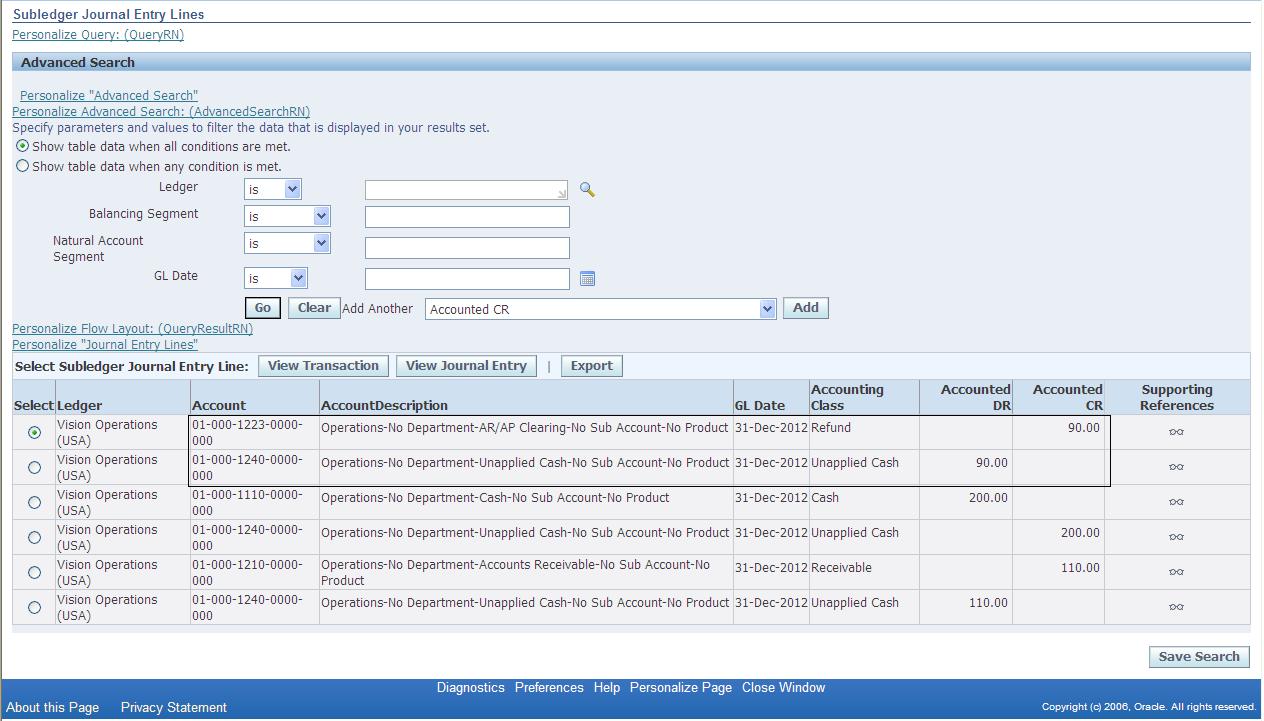
The SLA Page for Drilldown shows the following:
- GL Journal Line information
- Subledger Journal Line information

There are two Options available on this SLA page:
- View Transaction
- View Journal Entry

View
Transaction’ will take us to the Subledger Transaction form. E.g for
the current journal line, since the Source was Payables, it opens
Invoice Workbench.

‘View Journal Entry’ will take to the Subledger Journal Entry details


View Journal Entry has three parts to it.
- Transaction Information
- Additional Information (this is hidden by default)
- Line Details
Apart
from this there are some extra details shown at the top of the page,
which is the header level information for the Subledger Transaction.
Some of the important fields in header part of the Subledger Transaction Journal are:
Some of the important fields in header part of the Subledger Transaction Journal are:
- Ledger Name
- Journal Entry Status
- Balance Type
- GL Date
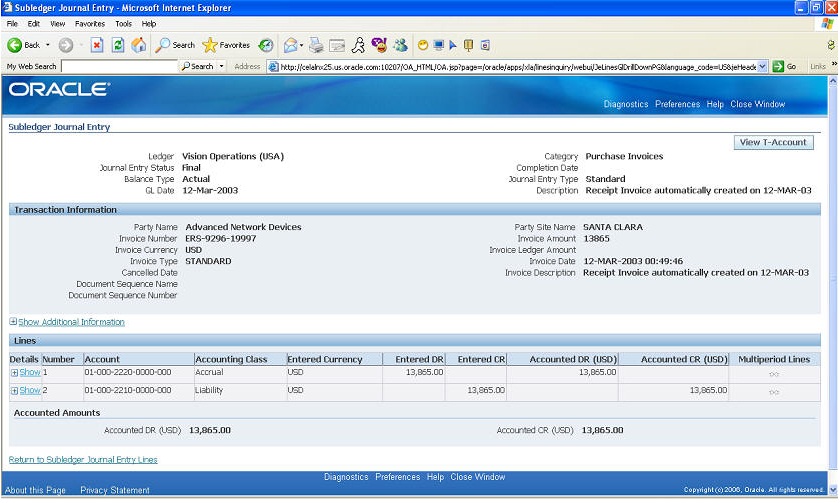
This is the 'Transaction Information' section of Subledger Journal Entry page.
The fields here will change based on the transaction and the subledger in which the transaction was entered.
Since the example transaction is entered in Payables, it is showing the details of the invoice and the supplier.
The fields here will change based on the transaction and the subledger in which the transaction was entered.
Since the example transaction is entered in Payables, it is showing the details of the invoice and the supplier.

This is the 'Additional Information' section of Subledger Transaction Entry page.
This section shows the details of
This section shows the details of
- Event
- General Ledger
- Sequences
- Application Accounting Definition
Note
that Event and Application Accounting Definition are important from SLA
side. However, from GL perspective the relevant details are Period,
Transfer to GL Date and Transfer to GL status.

This is the last section, 'Lines' of the Subledger Journal Entry page.
The important details in this section are:
- Code Combination
- Currency
- Entered Debits and Credits
- Accounted Debits and Credits

This page gives various details for transaction line from the subledgers side.
Thus the Drilldown from General Ledger, takes us to the Subledger Journal Entry which shows the details of the Subledger journal. From here we can further drilldown to the Subledger Transaction.
Profile Options related to Drilldown:
Thus the Drilldown from General Ledger, takes us to the Subledger Journal Entry which shows the details of the Subledger journal. From here we can further drilldown to the Subledger Transaction.
Profile Options related to Drilldown:
- SLA: Enable Subledger Transaction Security in GL
This profile option controls whether the drilldown to SLA will enforce the transaction security of the application owning the Transaction. For example, if one drills down to Payables, he will only be able to see Journals for transactions belonging to operating units to which he has access (based on your MO: Security Profile.) Thus drilldown can be restricted to the Operating Units to which the responsibility has access. In case the GL responsibility does not have access to a particular Operating Unit, the Drilldown will not show any data.